 |
|
|
|
|
|
| The Coupon BuyObject | |||||
|
|||||
| Back | Printable | Next | |||
|
|||||
| The Coupon BuyObject provides a simple and powerful way to offer special discounts to selected customer groups.
It contains a text field for customers to insert the coupon number you have given them. When the buyer inserts that coupon number, the coupon amount will be deducted from the price, as the item is added to the cart. You can assign multiple Coupon IDs with differing discount amounts to product Item numbers, so that you can distribute coupons with varying discounts for the same item. Note: There is a Coupon Template in the SamplePages sub directory that you can modify to suit your needs, to make it easy to get started. |
|||||
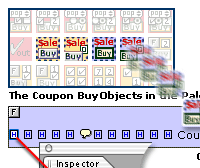 |
1) Drag one onto the page, drop it, and position it with "Show Invisible Items turned on in GoLive. | |
|||
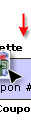 |
It will look like this: |
(Color added to BuyObject Background for clairity) |
|
||
 |
|
||||
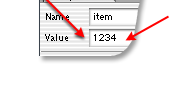 |
2) Enter the item number (SKU) into the item hidden field of the Coupon BuyObject.
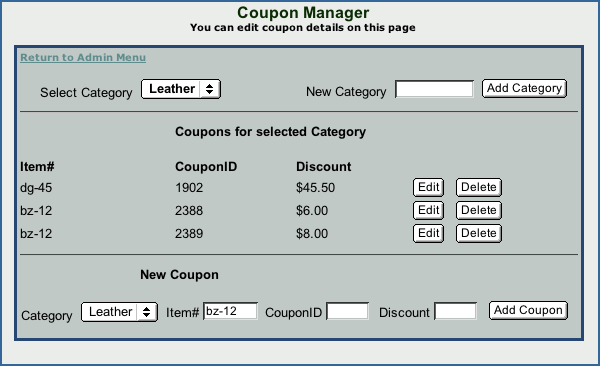
3) Go to the Coupon Manager, (screenshot below) and create the category you want this Coupon to be in, if you haven't already, or select it if you have already made one. |
|
|||
|
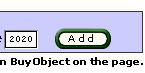
4) In the New Coupon section popup, select the Category, if it is not already selected. 5) Under New Coupon, in the Item# field, enter the exact item number (SKU) for the product, that you assigned the product in its BuyObject, above. 6) Enter the number you want to assign to this Coupon in the CouponID field. The example above shows "2020", but you can use any alphanumeric number you want, as long as the first character is an arabic number. It won't work if the first digit is a letter. 7) In the Discount field, enter the amount you want this coupon to discount the item. Just the numbers with a decimal point, such as 6.00 or 25.50. Do not put a monetary sign in this field. 6) Click on the "Add Coupon" button. The discount amount for that coupon will appear as shown. 7) Note that you can add additional coupons to the same item with different discount amounts, as shown in the screen shot of the Coupon Manager, below. This means that you can issue multiple discount coupons for the same item, while keeping the value of the coupons confidential. |
|
||||
 |
|
||||
| Screenshot of the Coupon Manager | |
||||
| Top of Page | |||||